Almost every Git user eventually runs into the same problem.
A commit was created.
Then regret arrived.
Maybe the commit contains broken code. Maybe the wrong file slipped in. Maybe the commit message is terrible. Or maybe the commit was already pushed before anyone noticed the mistake.
At that point, people usually search:
How do I undo a Git commit?
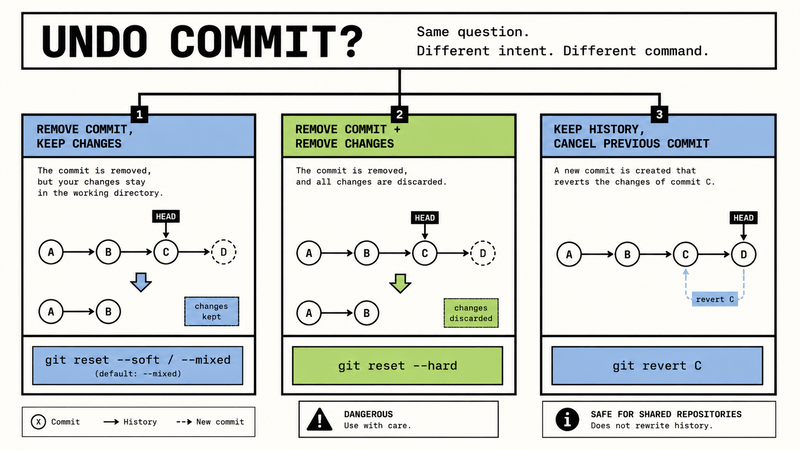
Then the confusion begins.
Some tutorials recommend git reset.
Others say git revert.
Someone suggests checkout.
Then suddenly restore, amend, reflog, HEAD~1, force push, and several unfamiliar Git concepts appear all at once.
The frustrating part is that most of those answers are technically correct.
The real problem is simpler:
“Undoing a commit” can mean several completely different things.
You might want to:
- remove the latest commit
- remove a commit but keep your changes
- undo something already pushed
- restore a file
- rewrite the previous commit
- recover deleted history
Git provides different tools for each situation.
Once you understand that distinction, the command overload becomes much easier to understand.
What a Commit Actually Is
A Git commit is simply a saved snapshot of your project at a specific point in time.
If you’ve played video games, think about save points.
You reach a stable point, save progress, and continue experimenting.
Git works in a similar way.
A commit stores:
- project state
- file changes
- author information
- timestamp
- commit message
Commits are then connected together into a history graph.
Why “Undo Commit” Causes So Much Confusion
This phrase sounds simple, but it hides several very different intentions.
Sometimes you want to remove the commit without touching your code.
Sometimes you want to remove both the commit and the changes.
Sometimes you should not remove anything at all — you only need to create a new commit that cancels an earlier one.
Different problem.
Different command.
That is why Git offers multiple approaches instead of a single universal “undo” button.
The Fast Cheat Sheet
If you want the shortest possible version:
| Goal | Command |
|---|---|
| Remove local commit | git reset |
| Undo pushed commit safely | git revert |
| Restore file | git restore |
| Fix last commit | git commit --amend |
| Recover deleted history | git reflog |
Now let’s break down what each command actually does.
Remove the Last Local Commit with git reset
Suppose you just created a commit:
git add .
git commit -m "Temporary experiment"
A few seconds later you realize:
That commit should not exist.
Use:
git reset HEAD~1This removes the commit from history but keeps your file changes.
By default, Git also unstages your files.
Understanding HEAD~1
HEAD means:
the commit you are currently on
HEAD~1 means:
one commit earlier
Examples:
HEAD~1
HEAD~2
HEAD~3
move backward through history.
Soft Reset
If you want to remove the commit but keep staging intact:
git reset --soft HEAD~1This keeps:
- file changes
- staged files
Useful when you only want to rewrite the commit message or slightly reorganize the commit.
Hard Reset
The dangerous version:
git reset --hard HEAD~1This removes:
- the commit
- working directory changes
- staged files
Your repository becomes identical to the previous commit.
Use this command carefully.
Undo a Pushed Commit with git revert
Once code has already been pushed, reset becomes risky.
History rewriting can break collaborators.
That is why Git provides:
git revert <commit-hash>Instead of deleting history, Git creates a new commit that reverses the previous changes.
Example:
Before:
A → B → CAfter:
git revert CResult:
A → B → C → DWhere D cancels the changes introduced by C.
This makes revert the safest option for shared repositories.
Restore a Single File with git restore
Sometimes the entire commit is fine.
Only one file is wrong.
Imagine you broke:
config.jsRestore it:
git restore config.jsGit replaces the file with the version from the latest commit.
You can also restore from a specific commit:
git restore --source=HEAD~1 config.jsor:
git restore --source=a1b2c3d config.jsThis is extremely useful when recovering earlier implementations.
Fix the Last Commit with git commit --amend
Sometimes the commit is mostly correct.
You simply forgot something.
Common cases:
- missing file
- bad commit message
- small bug fix
- forgotten config change
Use:
git commit --amendGit opens the commit editor.
Update the message.
Save.
Done.
If you forgot a file:
git add missing-file.ts
git commit --amend
Git rebuilds the previous commit as if it had originally been created correctly.
Important Warning
amend rewrites history.
If the commit was already pushed, you may need:
git push --forceUse force push carefully.
Recover Deleted Work with git reflog
This command rescues many Git disasters.
Especially after accidental:
git reset --hardRun:
git reflogExample:
7f2a3c1 HEAD@{0}: reset: moving to HEAD~1
3b9d221 HEAD@{1}: commit: Add payment logic
Notice something important.
Your “deleted” commit is usually still recoverable.
Grab the hash:
git reset --hard 3b9d221Repository restored.
Panic avoided.
Undo git add
Technically not a commit operation.
Still useful.
If you staged the wrong file:
git add .Unstage it:
git restore --staged package.jsonThe file remains modified.
Git simply removes it from staging.
Which Command Should You Use?
Use:
git resetwhen removing local commits.
Use:
git revertwhen undoing pushed commits.
Use:
git restorefor recovering files.
Use:
git commit --amendfor repairing recent commits.
Use:
git reflogwhen recovering deleted history.
Final Thoughts
Git feels complicated mostly because people ask vague questions.
“Undo a commit” sounds simple.
In reality, it can describe several completely different actions.
Once those actions are separated, the command choice becomes much clearer.
The practical takeaway looks like this:
-
resetrewrites local history -
revertsafely cancels pushed changes -
restorerecovers files -
amendfixes recent commits -
reflogrescues mistakes
You do not need to memorize everything immediately.
Just remember one rule:
Understand what you actually want to undo first.
The correct Git command usually becomes obvious after that.